View GIS Data Summary and Fallout Reports
The GIS Geographic Information System. A computer application that involves storing and manipulating electronic maps and related data. Also, mapping software combining spatial information about where places and events are located with data attributes describing those places and events. Summary Report and GIS Fallout Report provide fallout information for your last 20 data runs. Depending on the report type, report data can be exported or downloaded to a comma-separated value (CSV) or file geodatabase (FGDB File Geodatabase. A file geodatabase is a collection of files in a folder on disk that can store, query, and manage both spatial and nonspatial data.) allowing you the ability to customize the view of your data. The reports are saved for one calendar year (365 days) and then are automatically deleted.
The GIS Summary Report includes an overview of your GIS data run showing a summary of the Quality Control (QC Quality Control) check results and can be generated for jobs ran within one calendar year (365 days) provided that the job card is visible in the Analytics page. The GIS Summary Report is sorted by layer name and QC severity level.
The GIS Fallout Report provides detailed fallout error descriptions to assist in correcting your data.
 Data Report Card Elements
Data Report Cards are created when running your Data Targets and enables you to view and export a summary of fallout details or download a detailed fallout report. Data Report Cards are arranged starting with the most recent.
Each Data Report Card consists of the following components.
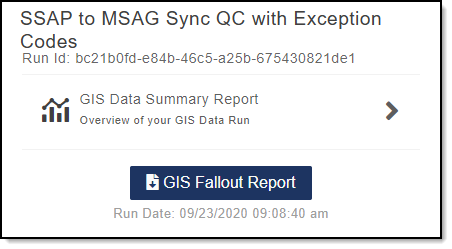
- Title and Run ID: Identifies the Data Target selected, and the Run ID assigned for the Data Target.
- GIS Data Summary Report: Provides a link to view a summary of fallout errors for the latest GIS data run.
- GIS Fallout Report and Run Date: Enables you to download a GIS Fallout Report that includes fallout error messages for the run date and time stamp indicated on the Data Report Card.
-
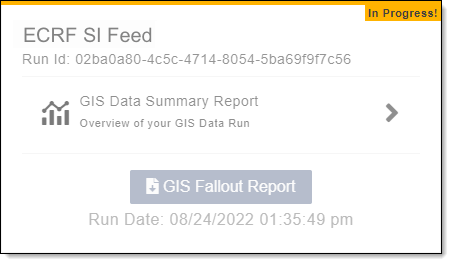
Status Banner: Enables you to track the report status for the GIS Data Summary and Fallout reports. The status banner is shown when a submission is in progress, indicating the requested data is not yet available. Once the processing is complete, the banner is removed and data is available for your use.
View a GIS Data Summary Report
Complete the following to view a GIS Data Summary Report.
- In the Navigation Bar, click Analytics.
-
Expand the Select a Data Target drop-down and select a data target.
Available Data Report Cards are shown.
-
(Optional) To filter the list to a specific date and time, click Filter and select.
GIS Data Summary Reports can be generated for jobs ran within one calendar year (365 days)provided that the job card is visible in the Analytics page.
- Locate the Data Report Card for the data target you want to view.
-
Click
 to view the GIS Data Summary Report.
 A progress bar displays while the report is being generated. Once the report is complete, the page refreshes and the GIS Data Summary Report opens.
See GIS Data Summary Report Content Descriptions for additional details on the information included in the report.
Download a GIS Fallout Report
Complete the following to download a GIS Fallout Report.
- In the Navigation Bar, click Analytics.
-
Expand the Select a Data Target drop-down and select a data target.
Available Data Report Cards are shown.
- (Optional) To filter the list to a specific date and time, click Filter and select.
- Locate the Data Report Card for the data target you want to view fallout details for.
-
Click
 to download the GIS Fallout Report.
 A progress bar displays while the report is being generated. Once the report is complete, a zip file containing a CSV or FGDB for the GIS Fallout Report is created and downloaded.
The CSV or FGDB for the GIS Fallout Report exports up to 100,000 QC fallouts. If you exceed 100,000 fallouts, the following message is displayed, "This QC check has reached the 100,000 count limit. Fallouts must be corrected for more records to display." When you receive this message, correct the fallouts in the report to display additional QC fallouts. See View Additional Fallouts When The Count Exceeds Limits for additional information on reducing error counts.
Transformation validation fallout reports are limited to 10,000 fallouts.
-
Open the file that was downloaded to view your fallout results.
The fallout results display which feature classes fell out, the QC check they failed, the severity level, general and detailed descriptions, and more.
See GIS Fallout Report Content Descriptions for additional details on the information included in the report.
- (Optional) Format to modify the file view as needed.
- (Optional) Click Save as to save the file.
GIS Fallout Report Content Descriptions
The GIS Fallout Report includes the following information.
-
Feature Class: Defines which layer caused that particular fallout to occur. If multiple layers are scanned within a QC check, then the Feature Class field populates with the layer that is primarily being inspected.
For example, in the SSAP Site Structure Address Point to RCL Road Centerline Synchronization check, the Site Structure Address Points (SSAP’s) are being compared against the roadcenterlines (RCL’s). As a result, this field would populate with SSAP as the attribute Nonspatial information about a geographic feature in a GIS, usually stored in a table and linked to the feature by a unique identifier. For example, attributes of a river might include its name, length, and sediment load at a gauging station.. For polygon comparison checks, if the FIRE layer is being compared against the EMS Emergency Medical Service. Response centers for services such as ambulance, fire department, hospital, and poisen control center. layer, this field would populate with FIRE.
-
Unique Feature ID: An exclusive identifier that distinguishes a feature from all other features in a particular dataset. The Unique Feature ID is configured by the user for each specific QC check and can be used to identify which feature within a dataset created that particular fallout. The Unique Feature ID relies on the user to maintain a truly exclusive identification for each feature within their dataset to be effective.
-
QC Check Name: The title of which QC check triggered the fallout record.
-
Description: A brief summary describing what the QC check is scanning for.
-
Extended Information: A detailed description of why a particular feature, or features, failed a QC check. The Extended Information field is a dynamic field that populates differently to accommodate a wide variety of QC checks. Additionally, this field is the most direct in providing actionable information to help correct the perceived deficiency.
-
Latitude: The Y coordinate of a coordinate pair. This angular metric represents how far this location is North or South of the Equator. If this attribute is available for the QC check, the Latitude field is populated.
When populated, it represents the center of the point, line, or polygon that triggered the fallout. An exception is for Feature Not Split at Polygon, where it represents the Y coordinate of the line/polygon point of intersection.
-
Longitude: The X coordinate of a coordinate pair. This angular metric represents how far this location is East or West of the Prime Meridian. If this attribute is available for the QC check, the Longitude field is populated.
When populated, it represents the center of the point, line, or polygon that triggered the fallout. An exception is for Feature Not Split at Polygon, where it represents the X coordinate of the line/polygon point of intersection.
-
Reference: This field is not currently used.
-
Severity: Identifies the importance for each QC fallout record to determine the criticality for correction. Values set to Critical and Warning are configured by the user for each specific QC check. Values are set to Informational automatically by GIS Data Hub for field mapping related fallout records.
The severity levels are defined as follows:
-
Critical: Refers to features that failed a QC check set up used to prevent data deemed unacceptable from being provisioned as either a data package, a GIS derived MSAG, or the NG9-1-1 Next Generation 9-1-1. The next evolutionary step in the development of the 9-1-1 emergency communications system known as E9-1-1 features and functions and add new capabilities. NG9-1-1 will eventually replace the present E9-1-1 system. NG9-1-1 is designed to provide access to emergency services from all sources, and to provide multimedia data capabilities for PSAPs and other emergency service organizations. Spatial Interface. These records require user action and are the most urgent to correct.
-
Warning: Refers to features that failed a QC check set up used to notify users that the data may not be optimal for consuming applications and other uses. These records require user action however, are less urgent than those set to a severity level of critical.
-
Informational: Refers to transformational items meant to better inform the user. These items are not likely to require any action on behalf of the user.
-
Transformational Fallout Messages
The GIS Fallout Report may include transformational fallout messages if errors occur when processing a job that can be corrected or when there are report configuration errors that may cause unexpected results. The two primary transformational error types are as follows:
-
Transformation Validation Task: Something went wrong converting your data from source to your data target schema that is not specific to your data upload.
-
Transformation Data Validation Task: Something went wrong converting your data from source to your data target that is specific to the data you last uploaded.
The transformational fallouts in the GIS Fallout Report provide a description of the error to help understand the underlying problem, and when available, a suggestion for correction. It is important that transformational fallouts identified as Critical are corrected before the job is processed again to ensure it can process successfully.
Additionally, for any critical level transformational fallouts, configured users receive an e-mail alerting them to the failure so they can view the GIS Fallout Report and correct the error(s).
Note: Informational messages in your fallout report do not include actionable tasks for correction.
GIS Data Summary Report Content DescriptionsThe GIS Data Summary Report includes the following information.
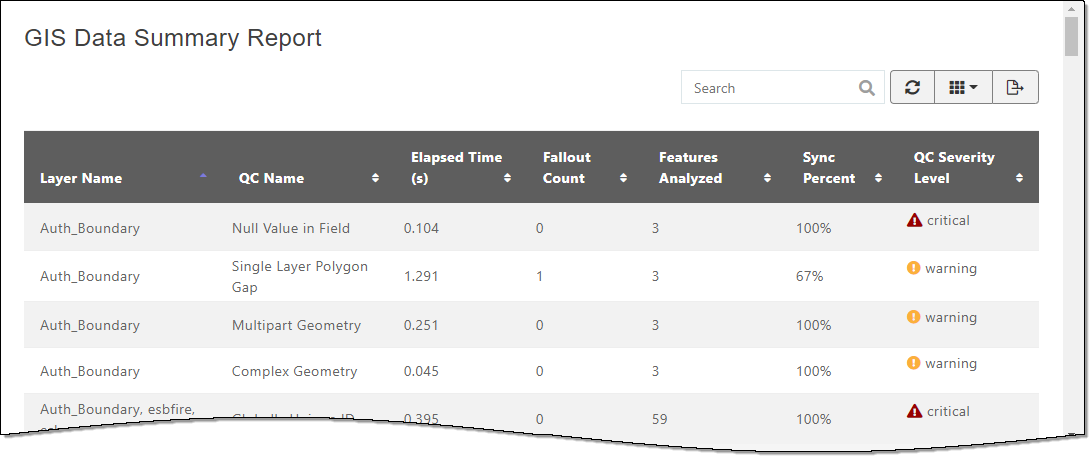
- Layer Name: The layer the QC check ran against.
- QC Name: The name of the QC check that was run.
- Elapsed Time(s): The time it took to run the QC check for the specified layer.
- Fallout Count: The number of fallouts that occurred for the layer in the QC check.
-
Features Analyzed: The total number of features that were analyzed in the layer when the QC check was run.
There may be times where the Features Analyzed exceeds the total features in your submitted data. This is due to GIS Data Hub exploding any multipoint features into individual points. The Features Analyzed data in the GIS Summary Report includes a total of all individual analyzed points.
For the Acceptable Feature Count QC check, the Features Analyzed column of these reports will always state a count of one.
- Sync Percent: The percent of data processed in the QC check that was successful and is good.
-
QC Severity Level: The severity level assigned for the QC check fallout that occurred. Warnings include the following starting with the most severe.
-
 Critical: A Critical severity level is assigned when the QC check must not fail. If the QC check fails, it prevents export package outputs, as the source data is deemed unsatisfactory to produce them.
 -
 Warning: A Warning severity level is assigned when the QC check is not critical. Failure of warning level QC checks still create package outputs. Any fallouts point the user to the data issue so it may be inspected and rectified as necessary.
-
- Toolbar: The toolbar provides tools to search the report, refresh the results, customize columns, and export the report. See GIS Data Summary Report Toolbar.
GIS Data Summary Report Toolbar
The GIS Data Summary Report toolbar provides tools to search the report, refresh the results, customize columns, and export a report.
Search
Enables you to search the GIS Data Summary Report.
-
Click in the Search box and enter complete or partial search criteria.
The more information provided, the more the search is narrowed down.
Matching search results are displayed, and the search criteria is highlighted.
You can use the sort function when search results are displayed to rearrange the results.
- To clear the search results, delete the search criteria or click Refresh
 .
.
Refresh
Refreshes results in the report and clears Search.
In the GIS Data Summary Report toolbar, click Refresh to refresh or clear Search.
Columns
Add, remove, or sort the columns shown in the report and when exporting a file.
Add or Remove Columns
- In the GIS Data Summary Report toolbar, click Columns
 .
. -
In the Columns drop-down do one of the following.
-
Add a column: Click the check box(es) to add a checkmark. This adds the selected column to the report.
-
Remove a column: If the check box(es) is checked, click the check box(es) to deselect and remove the column from the report.
-
- To close the window, click Columns or click outside of the drop-down.
Sort Columns
When a column is sorted, rows are rearranged in either ascending or descending order for the contents in the column selected.
Click a column header to sort the columns in ascending order or descending order.
The arrows change to a single blue arrow either pointing up for ascending or down for descending.
Click the header again to change the sort direction.
To return to the original sort, click the column header until the two white arrows are shown.
Export a Report
The GIS Data Summary Report can be exported using the Export tool. This tool allows you the ability to select and sort the columns to include in the report and only export the data shown.
To export a report, complete the following from the GIS Data Summary Report.
- Select the Columns to Include in the Export File: Expand the Columns drop-down and select the columns to include in the report. For additional information, see Columns.
- Sort the Columns: Use the sort arrows to sort the columns to the preferred order. For more information, see Sort Columns.
-
Export the File: In the GIS Data Summary Report toolbar, click Export
 .
.A CSV is created that includes the data selected in the report.
- Open the file that was downloaded to view results.
- (Optional) Format to modify the file view as needed.
- (Optional) Click Save as to save the file.